
 Steam charts
See what Steam
doesn't show you
Prices from every major CS2 marketplace, floats, trade checks, player counts and the lowest price ever — added to Steam's own pages, in Steam's own look.
 Add to Chrome
 Add to Firefox
Free · No account · 11 Steam pages · 148 settings · Chrome, Edge and Firefox
 On
Looks like Steam
Everything Steambuff adds uses Steam's own markup and styles, so it reads as part of the page.
Your account stays yours
It runs in your browser with your own Steam session. Your password, cookies and Steam tokens never reach Steambuff.
Nothing happens without a click
Selling, relisting, accepting or declining offers — Steambuff only acts when you click.
Every addition is a switch
Turn any of them on or off, or start from Default, All on or All off, in a panel on every supported page.
One extension for the whole of Steam
11 of Steam's pages, from your inventory to the store, each with what Steam leaves out.
OnInventory16 settings
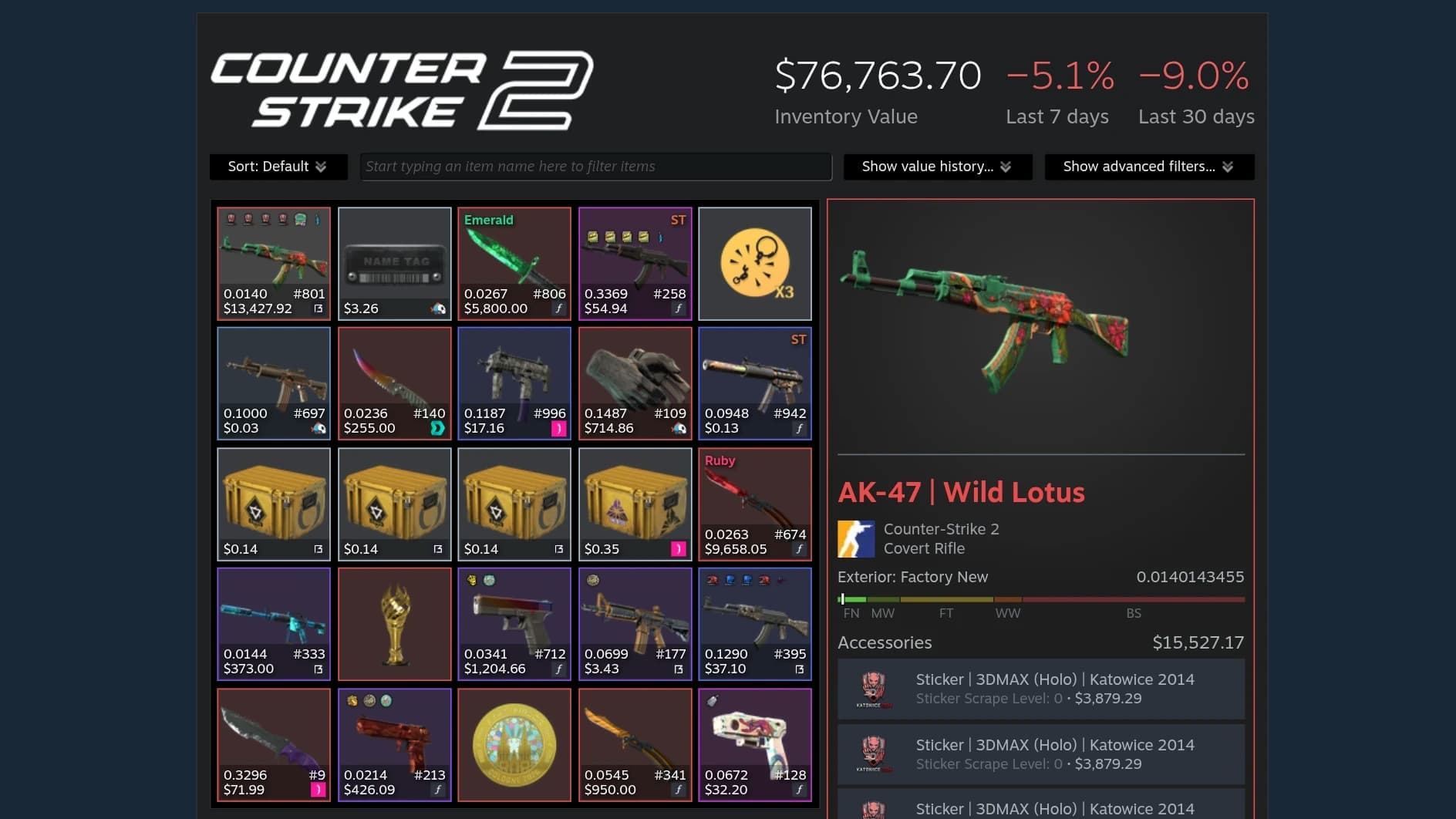
Know what every skin is worth
Your CS2 inventory's value beside its logo, and prices, floats and stickers on every tile — the way Steam would show them if it did.
- Inventory value — its total, and its 7 and 30 day change
- Value history — a chart of the value, and the value by type
- Price, float and pattern — on every tile, with the marketplace's icon
- Phase and stickers — Doppler phase, StatTrak™, stickers and charm
- Item panel — every marketplace's offer, a wear scale and a Buy button
On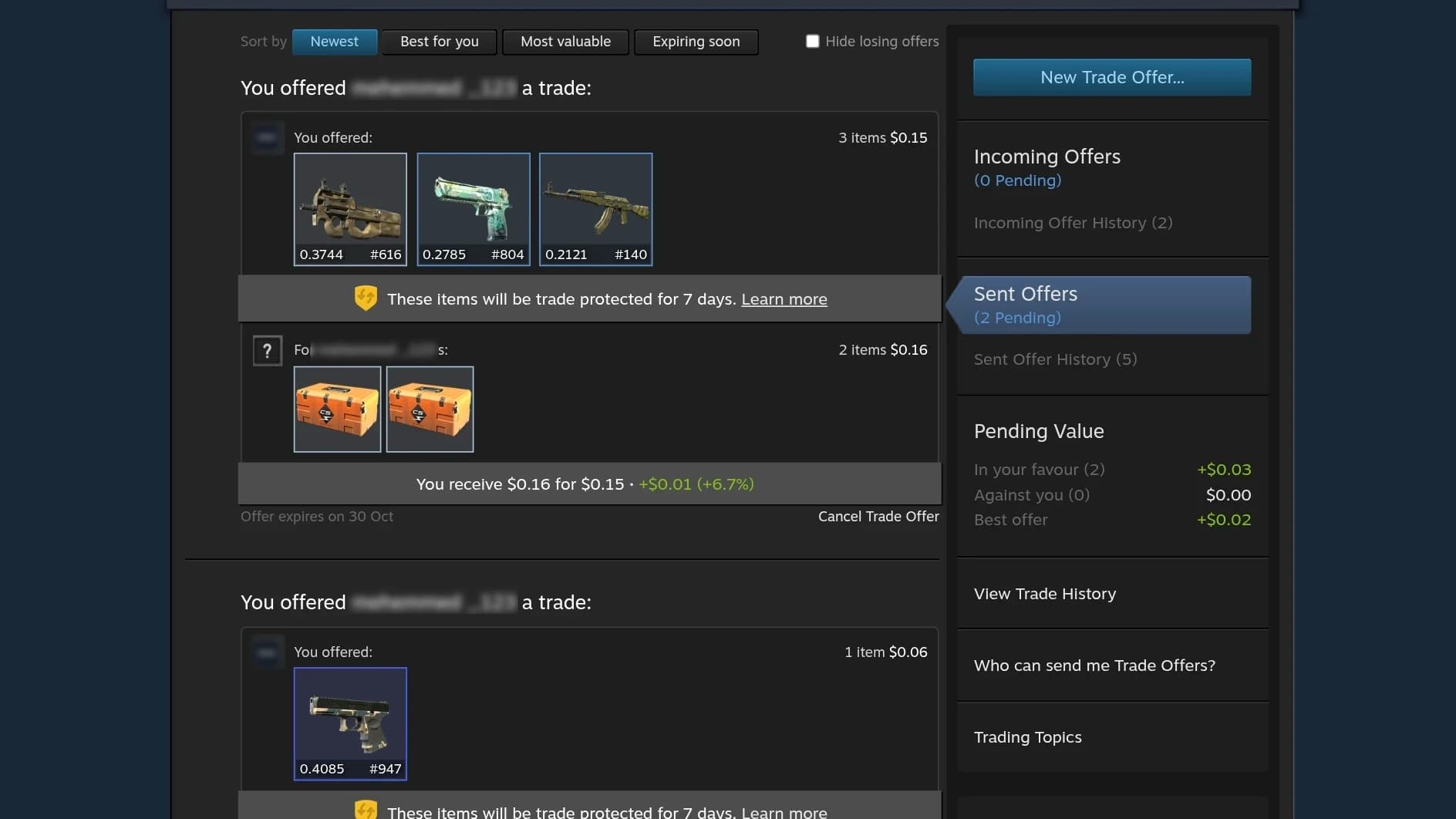
Trade offers27 settings
Trade with the numbers in front of you
Every offer, new or old, sent or received, shows what each side is worth — and who you're trading with.
- Offer balance — what's given, what's got, and the difference
- Loss warning — Steam's own callout on a lopsided offer
- Account checks — the other side's age, bans and private inventory
- Link check — a warning when a message links outside Steam
- Sort, filter, decline several — and accept straight from the list
On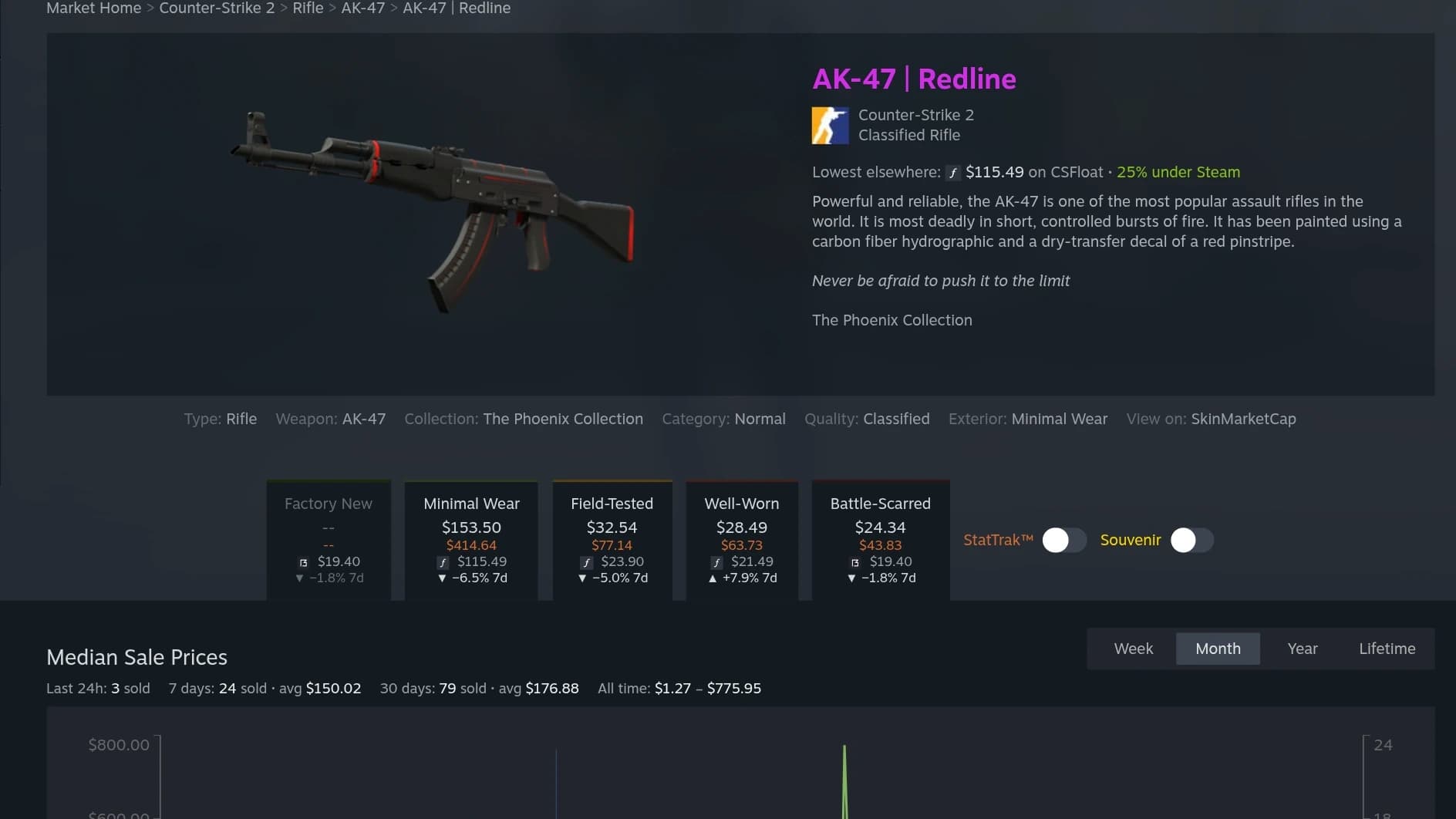
Community Market46 settings
Buy where it's cheapest
Steam's market with the rest of the market beside it: the lowest price outside Steam on every result, item and listing.
- Lowest elsewhere — and how much cheaper than Steam it is
- Prices in the tabs — each exterior's lowest, and its week's change
- Sales summary — over the price chart; every marketplace's offer after it
- Your listings — relist a cent under the lowest, remove several at once
- Fee calculator — and CS2's biggest risers and fallers of the week
On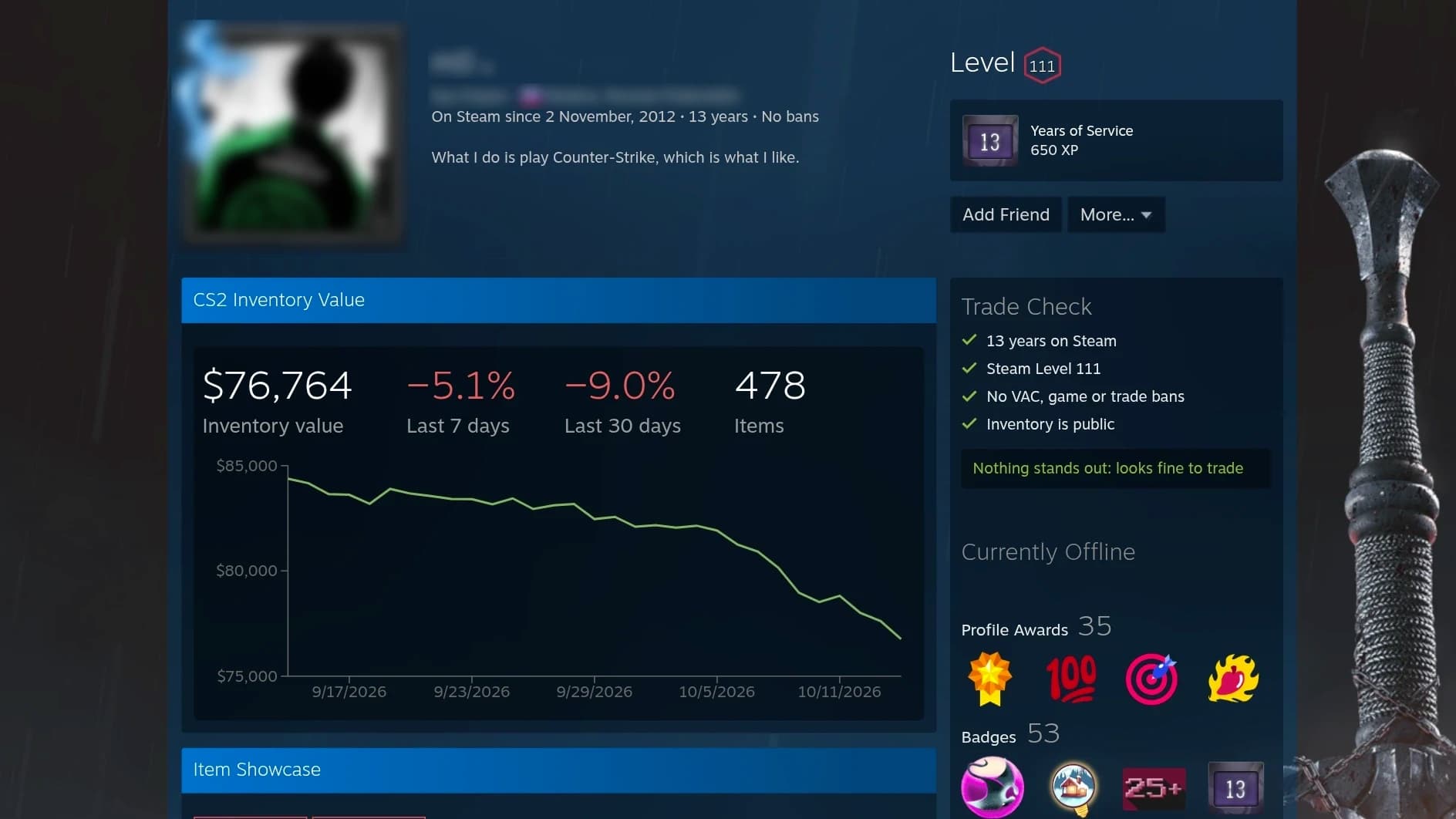
Profiles10 settings
Know who you're trading with
Every profile gets a trade check that ends in a verdict, and what the account's CS2 inventory is worth.
- Account age and bans — under the name, as Steam writes a VAC ban
- Trade check — age, level, bans, privacy and CS2 hours, then a verdict
- Inventory value showcase — the value and its history, before the profile's own
- FACEIT and Leetify — the account's numbers in the right column
- Links and SteamIDs — copy any SteamID; open the account on FACEIT, Leetify and more
On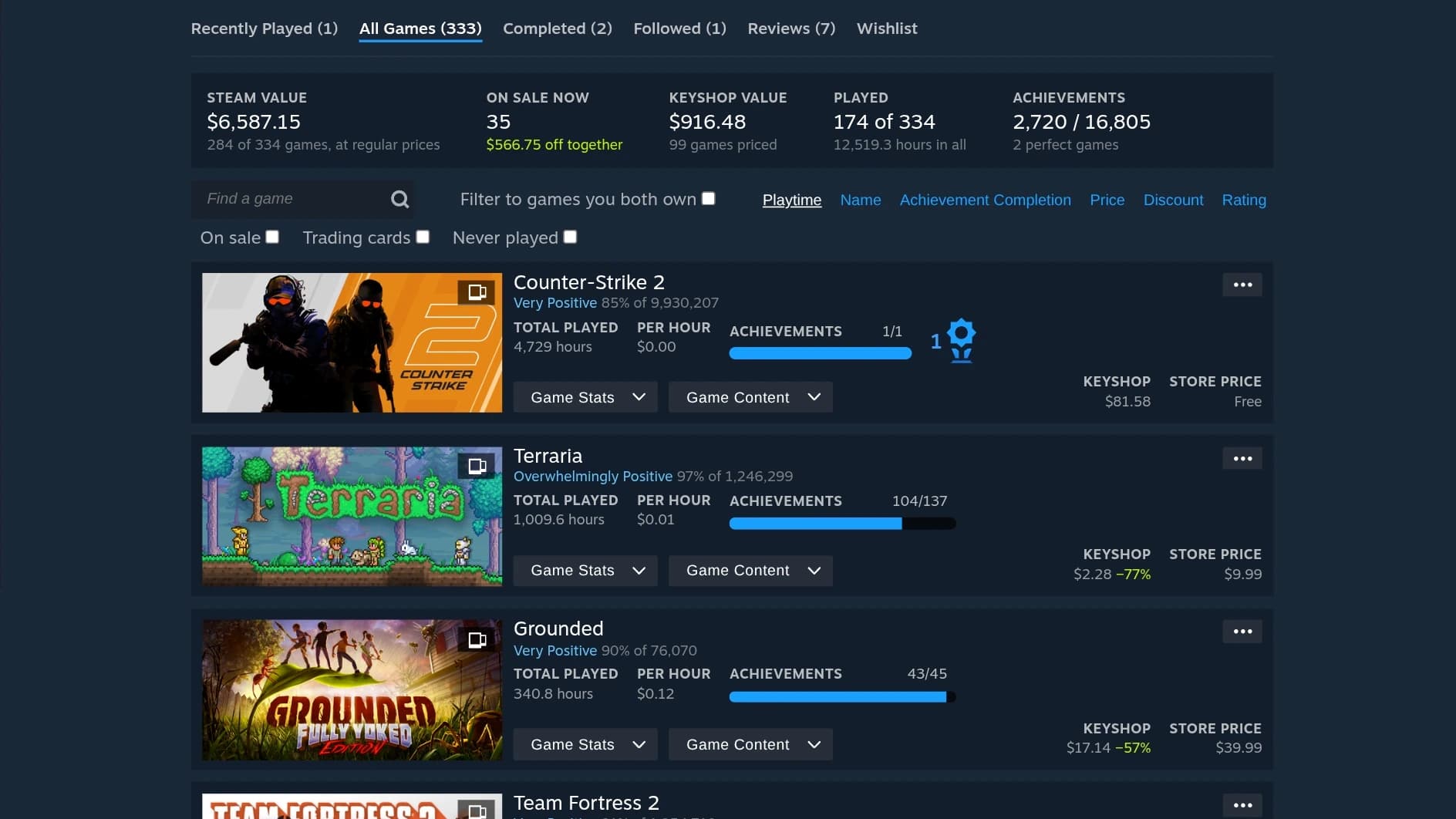
Games12 settings
Your library, priced
Every game in a library with its store and key shop price, and what the whole library is worth.
- Library summary — store and key shop value, what's on sale, how much is played
- Store price — with Steam's discount box, and when the sale ends
- Key shop price — the cheapest, from GG.deals
- Price per hour — beside Steam's total time; never played, last played
- More sorts and filters — price, discount, rating; on sale, trading cards
On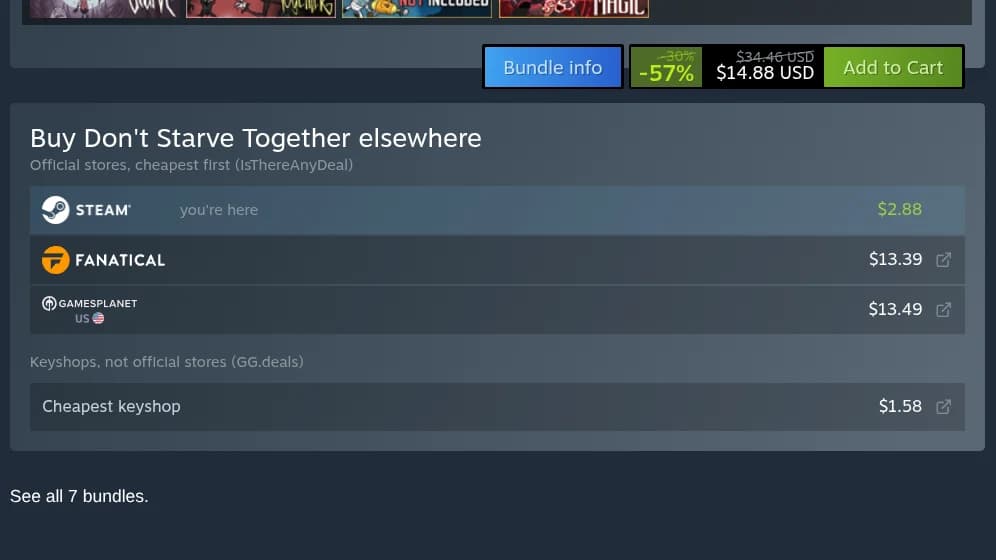
Steam storeNew37 settings
Catch every deal at its lowest
On the store's home, game pages and search: the lowest price ever, the price at other stores, and the numbers Steam leaves out.
- Lowest price ever — on deal cards, capsules and in the purchase box
- Buy elsewhere — GOG, Epic and other stores, and the cheapest key shop
- Regional prices — the package in any of Steam's 41 regions, in dollars
- Player count — now, the peaks and a chart; Twitch viewers, DRM and anti-cheat
- Search filters — lowest price ever, discount, reviews, length; saved searches
148 settings, 127 on from the start
Every addition is a switch. Turn any of them on or off in the panel Steambuff puts in the corner of each page — or start from Default, All on or All off.
Inventory
12 of 16 on- Inventory value, on by default: The CS2 inventory's total value and its 7 and 30 day change beside the game's logo.
- Value history, on by default: A “Show value history...” button in the search row. It opens a panel under the row with a chart of the inventory's value (week, month or lifetime) and its value by type.
- Sort, on by default: A menu in place of the search row's label that sorts a CS2 inventory by price or float, high or low first.
Item panel
- Description and tags, off by default: Steam's own description, collection and tags lines. The exterior line always shows.
- Accessories, on by default: Steam's list of the stickers and charm on the item, with their prices and total.
- Stickers on the image, off by default: The item's stickers and charm along the bottom of its image, each with a card on hover.
- Price under the title, off by default: The cheapest offer outside Steam and its marketplace, under the item's name.
- Float and wear scale, on by default: The float at the end of the exterior line, and a wear scale under it.
- Buy button, on by default: Buys the item where it's cheapest, above View in Community Market.
- Marketplace prices, off by default: Every marketplace's offer below the accessories, cheapest first, each linking to its market.
- Price history, on by default: A chart of the item's price under its details: the last 7 days, 30 days or all.
- Market tabs, on by default: A block under the market box: every marketplace's price, the price history, the wear and the stickers.
Item tiles
- Phase and quality, on by default: A Doppler's phase in the top-left corner, StatTrak™ or Souvenir in the top-right.
- Float and pattern, on by default: The float and the pattern template along the bottom.
- Price, on by default: The cheapest offer outside Steam along the bottom, with its marketplace's icon.
- Stickers, on by default: The stickers and the charm across the top, six to the tile's width; under the phase or StatTrak™ when the item has one.
Trade offer
15 of 15 on- One-click moves, on by default: Click an item once to put it into the offer or take it back out, in place of Steam's double click. Dragging still works.
- Sort, on by default: Over the inventory in a trade offer, yours or theirs: a menu that sorts it by price or float, high or low first.
- Inventory value, on by default: At the right end of the same row: how many items the shown inventory holds and what they're worth.
- Offer balance, on by default: Above the Make Offer button: what you give, what you get and the difference, on a meter.
- Loss warning, on by default: Above the Make Offer button, Steam's yellow warning when you'd give more than 5% over what you get, or ask for nothing in return.
- Account age, on by default: Beside Steam's own boxes over the offer: since when the other account has been on Steam, with Steam's years of service badge. Yellow under a year.
- Private inventory, on by default: Beside those boxes, a yellow note when the other account's CS2 inventory is private.
- Bans, on by default: Beside those boxes: the other account's VAC, game and trade bans and a community ban, in Steam's red when it has one.
- Same-name friend, on by default: Beside those boxes, a yellow warning when another of your friends has the other account's name: scammers copy names and avatars.
- Warning banner, on by default: Over the offer, a yellow banner when the other account is risky, and why: under a year on Steam, a ban, another friend's name.
- Inspect in 3D, on by default: In the menu an item's arrow opens, under Inspect in Game...: the item in a 3D viewer (cs2inspects.com) in a window of its own, without starting the game.
Item tiles
- Phase and quality, on by default: A Doppler's phase in the top-left corner, StatTrak™ or Souvenir in the top-right.
- Float and pattern, on by default: The float and the pattern template along the bottom.
- Price, on by default: The cheapest offer outside Steam along the bottom, with its marketplace's icon.
- Stickers, on by default: The stickers and the charm across the top, six to the tile's width; under the phase or StatTrak™ when the item has one.
Trade offer list
11 of 12 on- Side totals, on by default: Beside each side's heading in an offer (“For your:”), how many items it holds and what they're worth.
- Offer balance, on by default: A band under an offer's items: what you'd get, what you'd give and the difference. It turns Steam's yellow when you'd give more than 5% over what you get, or ask for nothing in return.
- Link check, on by default: A warning under an offer's message when it links to a site that isn't Steam's, as a look-alike address does.
- Accept from the list, on by default: Accept Trade between Respond to Offer and Decline Trade, without opening the offer. Steam may still ask you to confirm it in the mobile app.
- Sort and filter, on by default: Over the list: newest first, best for you, most valuable or expiring soonest, and a box that hides the offers you'd lose on.
- Pending value, on by default: In the column beside the list: how many open offers are in your favour and how many against you, what each group comes to, and the best offer.
- Decline several, on by default: A box under each received offer's avatar, and a button in the column beside the list that declines the offers picked, or every one you'd lose on.
- Item menu, on by default: On each item, the arrow of a trade offer's window and its menu: Inspect in Game..., Inspect in 3D... (a 3D viewer in a window of its own), the item in its owner's inventory and on the Community Market.
Item tiles
- Phase and quality, on by default: A Doppler's phase in the top-left corner, StatTrak™ or Souvenir in the top-right.
- Float and pattern, on by default: The float and the pattern template along the bottom.
- Price, off by default: The cheapest offer outside Steam along the bottom, with its marketplace's icon.
- Stickers, on by default: The stickers and the charm across the top, six to the tile's width; under the phase or StatTrak™ when the item has one.
Market search
8 of 12 on- Lowest price, on by default: Each result's cheapest offer outside Steam and its marketplace: a line under its quantity, or a button beside Steam's From that buys there.Button
- Saving badge, off by default: On each result's image, how much cheaper than Steam that offer is, in Steam's discount colours.
- 7-day change, off by default: At the end of each result's type line, its price's change over the last week, with a small chart.
- Prices by exterior, off by default: On a skin's result, the cheapest offer for each exterior, from Factory New to Battle-Scarred.
- What you'd receive, on by default: Under the From button, what selling at that price leaves you after Steam's fees.
- In your inventory, on by default: On a result's image, how many of the item your CS2 inventory holds.
- More sorts, on by default: Sort By also sorts by saving, by the cheapest price outside Steam and by the 7-day change, across the results loaded so far.
- Price switch, off by default: A Steam | Best price switch over the results: the From buttons show Steam's price or the cheapest elsewhere.
- List view, on by default: A Grid | List switch over the results. The list puts each result's quantity, Steam's price, the cheapest elsewhere, the saving and the 7-day change side by side.
- Saving filter, on by default: At the end of the filters: only the results cheaper elsewhere by at least 25, 30 or 35%.
- Marketplaces, on by default: A dropdown under the game picker for the marketplaces the prices above compare.
- Inspect in 3D, on by default: On a skin's, sticker's or charm's result, pointing at it: a button that opens its cheapest listing in a 3D viewer (cs2inspects.com), in a window of its own.
Market home
17 of 17 on- Inventory value, on by default: In the wallet box, what your CS2 inventory is worth beside View Inventory.
- Listing totals, on by default: Beside My sell listings, what your listings come to and what you'd receive once they all sell.
- Lowest listing, on by default: Beside each listing's game, whether it's the lowest on Steam, or what the lowest is.
- Relist at the lowest, on by default: Beside Remove on a listing that isn't the lowest, a button that removes it and lists it again a cent under the lowest.
- Remove several, on by default: A box on each listing, and a button beside My sell listings that removes the ones picked.
- Sort listings, on by default: Click a column heading over your listings to sort them by price, date or name.
- Highest buy order, on by default: Beside each buy order's game, whether it's the highest, or what the highest is.
- Buy order limit, on by default: Beside My buy orders, what they come to against Steam's limit of ten times your wallet.
- History summary, on by default: Over My Market History, how much you've bought and sold, and what the items bought are worth today.
- Today's price, on by default: A column in My Market History with each item's lowest price on Steam today and the change since.
- Export history, on by default: Beside Sell an item, a button that downloads your whole market history as a CSV file.
- Lowest elsewhere, on by default: A column in Popular Items, Newly Listed and Recently Sold with the cheapest offer outside Steam.
- 7-day change, on by default: Beside each row's game, its price's change over the last week, with a small chart.
- What you'd receive, on by default: Under each row's price, what selling at it leaves you after Steam's fees.
- In your inventory, on by default: Beside a row's name, how many of the item your CS2 inventory holds.
- Fee calculator, on by default: A box under the search: what you receive for a price a buyer pays, or the price that leaves you an amount.
- Weekly movers, on by default: A box under the search with CS2's three biggest risers and fallers of the week.
Market item
17 of 17 on- Lowest elsewhere, on by default: Under the item's type, the shown variant's cheapest offer outside Steam, its marketplace and how much under Steam that is. A Doppler's cheapest phase.
- In your inventory, on by default: Under the item's type, how many of it your CS2 inventory holds, which variants, and their worth on Steam.
- SkinMarketCap link, on by default: At the end of the item's property links, its page on SkinMarketCap.
- Prices in the tabs, on by default: In each exterior or variant tab, the cheapest offer outside Steam; Steam's own price in a tab that has none.
- Weekly change in the tabs, on by default: In each tab, how the variant's average sale on Steam moved over the week.
- Sales summary, on by default: Over the price chart: how many sold and the average over the last day, week and month, and the lowest and highest ever.
- Other marketplaces, on by default: After the price chart, every marketplace's cheapest offer for the shown variant against Steam's. Each phase's on a Doppler.
- What you'd receive, on by default: What selling now to the highest buy order, and listing a cent under the cheapest, would leave after Steam's and the game's fees.
- Spread, on by default: The gap between the cheapest listing and the highest buy order.
- Listings table, on by default: Beside the buy orders on an item listed one by one, how many are listed at each price, as Steam shows a commodity's.
- Over the lowest, on by default: On each listing, how far it's priced over the cheapest of the same exterior and quality.
- Sorts, on by default: Sort By gets sorts by the stickers' value and by the price against the market's.
- Float ranges, on by default: Under the Wear Rating filter, one-click float ranges for the picked exterior.
- Doppler phases, on by default: Under a Doppler's Finish Catalog filter, a button for each phase.
- Opening cost, on by default: On a case's page, what one opening costs: the case and a key.
- Contents' prices, on by default: On a case's page, each possible content's price range outside Steam, StatTrak™ apart.
- Inspect in 3D, on by default: Pointing at a listing, a button on its image, and a cube beside the magnifier in the window it opens: the listing in a 3D viewer (cs2inspects.com), in a window of its own.
Profile
7 of 10 on- Account age and bans, on by default: Under the name: since when the account is on Steam, how long that is, and its VAC, game and trade bans.
- Inventory value badge, off by default: Under the favorite badge, in a box like it: what the CS2 inventory is worth and its change this week.
- Links in More..., on by default: At the end of the More... menu: copy the SteamID, the account on FACEIT, Leetify and SkinMarketCap, and Steambuff's own profile page.
- Inventory value showcase, on by default: A showcase before the profile's own: the CS2 inventory's value, its 7 and 30 day change, how many items it holds and a value history chart.
- CS2 stats showcase, on by default: A showcase before the profile's own, under the inventory value showcase: FACEIT's level, ELO, matches, win rate, K/D and ADR, and Leetify's rating, aim, positioning and utility.
- Trade check, on by default: At the top of the right column, what to look at before trading: the account's age, level, bans, whether its inventory is public and its CS2 hours.
- Value beside Inventory, on by default: Beside the right column's Inventory link, where the other links show their counts: what the CS2 inventory is worth.
- Steam IDs, on by default: In the right column: the SteamID64, SteamID3, SteamID2 and custom URL, each with a link that copies it.
- FACEIT and Leetify, off by default: In the right column, linking to each: the FACEIT level and ELO, and the Leetify rating.
- Trade and community bans, off by default: Under the status, as Steam writes a VAC ban: a trade ban, trade probation or a community ban, which Steam leaves off the profile.
Games list
12 of 12 on- Store price, on by default: At the bottom right of each game's row: its price in the store, with Steam's discount box and the price before it when it's on sale. Free, or Not on store.
- Key shop price, on by default: Beside the store price, the cheapest key from a key shop (GG.deals) and how much cheaper than the store that is.
- Sale end, on by default: Under the price of a game on sale, the day its discount ends.
- Reviews, on by default: Under each game's name, its store review summary and the share of positive reviews, in the store's colours.
- Trading cards, on by default: The store's trading cards icon on the image of a game that has them.
- More links, on by default: In a game's “…” menu: SteamDB and GG.deals, and for a game with cards its badge and its cards on the Community Market.
- Never played, on by default: Where Steam shows a played game's total time, “Never played” on one that never was.
- Last played, on by default: Beside a game's total time, the day it was last played.
- Price per hour, on by default: A game's store price, before any discount, divided by the hours played.
- Library summary, on by default: Over the list: what the library is worth in the store and at key shops, what's on sale, how many games were played and the achievements.
- More sorts, on by default: Price, Discount and Rating beside Steam's own sorts.
- Filters, on by default: Under the search: only the games on sale, with trading cards, or never played.
Store home
7 of 10 on- Linux and Steam Deck, off by default: Under a featured game's reviews: its ProtonDB rating, how many reports that's from, and its Steam Deck rating.
- Deal end, on by default: On each card of Discounts & Events, left of the price: how long until the deal ends.
- Wishlist on sale, on by default: Steam's shows four games from your wishlist on sale, only when four are. Steambuff's shows every one, the biggest discount first, five to a page.
- Lowest price ever, on by default: A section under the tabs: up to ten of the page's games on sale that are at the lowest price Steam has ever sold them at, the biggest discount first.
- Best prices, on by default: In the preview beside the tabs: the game's four cheapest prices, Steam's among them, each with the store's logo and a link to the game there, and the cheapest keyshop's.
- Other stores and key shops, on by default: In the box a game's capsule opens when you point at it: its cheapest price at GOG, Epic and the other stores, with the store's logo, and at the key shops.
- Links in the “…” menu, on by default: In the menu a game's “…” opens, after Store preferences: copy its App ID, and the game on SteamDB, ProtonDB, IsThereAnyDeal and HowLongToBeat.
- Lowest price badge, on by default: On every game on sale at the lowest price Steam has ever sold it at: “Lowest Price Ever” under a deal card's label and at the bottom left of a capsule's image, “Lowest” beside a tab row's discount.
- ProtonDB badge, off by default: At the top right of every game's image: its ProtonDB rating, with a dot in the rating's colour.
- Dim what doesn't run on Linux, off by default: Fades the capsules of games ProtonDB rates Borked, until you point at one.
Game page
13 of 15 on- Review percentages, on by default: Beside each review line's count in the summary: the share of the reviews that are positive, which Steam shows only when you point at the line.
- Players, on by default: A line of the summary, under the publisher: how many play the game right now, and its peak of the last 24 hours.
- Twitch, on by default: A line of the summary: how many watch the game on Twitch right now, and on how many live channels.
- Linux and Steam Deck, off by default: A line of the summary, under the publisher: the game's ProtonDB rating, how many reports that's from when you point at it, and its Steam Deck rating, which Steam doesn't show on this page.
- Lowest price ever, on by default: In the game's purchase box, under the offer's end: the lowest price Steam has ever sold it at and when, or that this is it.
- Regional prices, on by default: A globe in each purchase box's price. Point at the price for the game's price in the regions you pick, in dollars at today's rates, cheapest first, and how much less or more each costs than in your store.
- Buy elsewhere, on by default: A box after the purchase boxes: the game's price at GOG, Epic and the other stores, cheapest first, Steam's among them, each with the store's logo and a link to the game there, and the cheapest keyshop's.
- Player count, on by default: A section under the purchase area: how many play the game now, its peaks of the last 24 hours, 30 days and all time, how many watch it on Twitch, and a chart of each day's peak over the last 30 days.
- Trading cards, on by default: In the right column, under the features: the game's trading cards, how many drop as you play, what the set and the foil set cost on the Community Market, and each card's cheapest listing.
- DRM and anti-cheat, on by default: In the right column, under the trading cards: whether the game has Denuvo or other third-party DRM, whether its Steam version runs without Steam and GOG sells it DRM-free, and its anti-cheats and whether they work on Linux and the Steam Deck.
- Achievement stats, on by default: Under Steam Achievements: how much of them players unlock on average, and the three rarest, with their icons.
- Last update, on by default: In the details, under the release date: the game's latest update and when it came out, and the day of its latest news.
- More links, on by default: At the end of the links under the details: the game on SteamDB, ProtonDB, PCGamingWiki, HowLongToBeat, IsThereAnyDeal and SteamCharts.
- ProtonDB badge, off by default: At the top right of each game's image in the carousels at the bottom: its ProtonDB rating, with a dot in the rating's colour.
- Reviewers' playtime, on by default: In the review summary, under the totals: how long the median reviewer had played when they wrote their review, and the share who had played under 2 hours.
Store search
8 of 12 on- Saved searches, on by default: A Save button beside Search that keeps the search you're on — its term, Steam's filters and its sort — and the searches you saved under the heading, each a click away, with an × that removes it.
- What the filters hide, on by default: Over the results, in a box like Steam's own about what it leaves out: how many of the loaded results Steambuff's filters hide, and Show them, which clears those filters.
- Links in the “…” menu, on by default: In the menu a result's “…” opens, after Store preferences: copy its App ID, and the game on SteamDB, ProtonDB, IsThereAnyDeal and HowLongToBeat.
- Lowest price ever, on by default: In Narrow by Price, under Hide free to play items: only the games at the lowest price Steam has ever sold them at.
- Discount, on by default: Narrow by Discount, after Narrow by Price: a slider for the least discount, from 10% to 90%.
- User reviews, on by default: Narrow by User Reviews, after it: a slider for the least share of positive reviews, from 50% to 95%, and a box that hides games with fewer than 500 reviews.
- DLC for games you don't own, on by default: In Narrow by preferences, under Steam's own: hides the DLC of games that aren't in your library.
- Length, on by default: Narrow by Length, after Narrow by tag: how long the main story takes on HowLongToBeat: under 15 hours, 15 to 40, or over 40.
- ProtonDB, off by default: Narrow by ProtonDB, after Narrow by Deck Compatibility: Platinum, Gold, Silver and Bronze.
- ProtonDB badge, off by default: At the top right of every result's image: its ProtonDB rating, with a dot in the rating's colour.
- Dim what doesn't run on Linux, off by default: Fades the results ProtonDB rates Borked, until you point at one.
- Steam Deck icon, off by default: After a result's platform icons: its Steam Deck rating, green Verified, yellow Playable or grey Unsupported, its name when you point at it. On a result where Steam shows its own Deck icon, this one stays out.
Every marketplace, side by side
The cheapest offer goes on every item. The item panel and the market's item page list them all, cheapest first, against Steam's own price.
 Buff163
 CSFloat
 Skinport
 DMarket
 CS.Money
 WAXPEER
 LIS-SKINS
 ShadowPay
 Market.CSGO
 Avan.market
Games are priced at Steam, Epic Games Store, GOG, Fanatical, Humble Store, Green Man Gaming and Gamesplanet — and at key shops, through GG.deals.

| Marketplace | Lowest offer | vs best |
|---|---|---|
| Buff163Best | $13,427.92 | — |
| DMarket | $13,429.90 | +0.0% |
| CSFloat | $13,599.00 | +1.3% |
| LIS-SKINS | $14,075.42 | +4.8% |
| ShadowPay | $14,165.50 | +5.5% |
| WAXPEER | $14,705.29 | +9.5% |
| CS.Money | $15,332.71 | +14.2% |
| Skinport | $15,476.71 | +15.3% |
| Market.CSGO | $16,081.82 | +19.8% |
Questions
Something else? Write to [email protected]
What is Steambuff?
Steambuff is a free Steam extension for Chrome, Edge and Firefox. It adds what Steam leaves out to Steam's own pages: CS2 prices from every major marketplace, floats and your inventory's value, checks on trade offers and profiles, what your library is worth, and on the Steam store, each game's lowest price ever, its price at other stores and its player count.
Is Steambuff free?
Yes. Steambuff is free and needs no account. Some "Buy" links to marketplaces (LIS-SKINS, DMarket, CS.MONEY) are affiliate links: Steambuff may earn a commission when you buy through them, at no extra cost to you.
Which browsers does it work in?
Google Chrome, Microsoft Edge and Mozilla Firefox. Chrome and Edge install it from the Chrome Web Store, Firefox from Firefox Add-ons.
Where does Steambuff work?
In your browser, on Steam Community — your inventory, trade offers and the trade offer list, the Community Market, profiles and games lists — and on the Steam store's home, game pages and search. It doesn't change the Steam desktop app.
Do I need to sign in?
Not to Steambuff — there's no Steambuff account. It uses the Steam session you already have in your browser, so the features that depend on your account, like your trade offers and market listings, work once you're signed in to Steam.
Is it safe to use with my Steam account?
Steambuff never asks for your password. It runs in your browser with your own Steam session. To show prices, bans and stats it sends item names, Steam IDs and game IDs to the Steambuff server — never your password, cookies or Steam tokens. Read the privacy policy.
Can Steambuff trade or sell on its own?
No. Selling, relisting, removing listings, and accepting or declining trade offers only happen when you click them.
Where do the CS2 prices come from?
From the major CS2 marketplaces — Buff163, CSFloat, Skinport, DMarket, CS.Money, WAXPEER and more — shown next to the Steam Community Market's own prices.
Does it show CS2 float values?
Yes. Every CS2 item in your inventory and in trade offers shows its float and pattern, its Doppler phase and its stickers. On the Community Market, one-click float ranges and a button for each Doppler phase narrow an item's listings.
Does it show my Steam inventory value?
Yes. Your Steam inventory shows what your CS2 inventory is worth beside the game's logo, with its 7 and 30 day change and a chart of its history, and every Steam profile shows what that account's CS2 inventory is worth. Steambuff's website values a whole account, games included, without the extension. Open the Steam account value calculator.
Does it show a game's lowest price ever?
Yes. On the Steam store, a game on sale at the lowest price Steam has ever sold it at is marked so, and a game's page shows its lowest price ever and when it was, its price at GOG, Epic and other stores, the cheapest key shop and its price in Steam's other regions. Store search can show only the games at their lowest price ever.
Which games does it support?
Prices, float, stickers, charms and Doppler phases are for CS2 items. The games features work for every game: store and key shop prices, reviews, trading cards and price per hour in a library, and on the Steam store, the lowest price ever, other stores' prices and player counts.
Is Steambuff an alternative to Steam Inventory Helper or Augmented Steam?
Yes. Steam Inventory Helper (SIH) is best known for items and trading, and Augmented Steam for the store; Steambuff covers both in one extension, free, with no account, in Chrome, Edge and Firefox.
Can I turn features off?
Yes. Every addition is a switch, with Default, All on and All off presets, and a settings panel on every supported Steam page.
Is Steambuff made by Valve?
No. Steambuff is an independent extension, not affiliated with or endorsed by Valve Corporation.
Make Steam better today
Free, for Chrome, Edge and Firefox. Install it, open your inventory, and see what every item is worth.
No account · Edge installs it from the Chrome Web Store